
Every year, millions of Americans face the same frantic ritual: digging through glove compartments, kitchen drawers, and faded envelopes to find that one specific receipt from last July. This “shoebox method” of accounting creates unnecessary stress and often leads to missed deductions that could have saved you thousands of dollars. Tax preparation doesn’t have to be a scavenger hunt; by transitioning to a digital system, you transform a chaotic pile of thermal paper into a searchable, secure, and IRS-compliant archive.
The Internal Revenue Service (IRS) officially cleared the way for digital record-keeping decades ago. According to Revenue Procedure 97-22, electronic records are just as valid as paper ones, provided they are legible and provide a clear audit trail. This means you can confidently shred that mountain of paper once you have a reliable digital backup. Organizing tax receipts through digital means isn’t just about saving space—it is about protecting your financial interests during a potential audit and making tax prep organization a year-round habit rather than an annual crisis.
- Digital receipts are legally valid for IRS audits as long as they are legible.
- The three primary methods involve cloud storage folders, dedicated scanning apps, or integrated accounting software.
- Naming conventions and consistent categorization are more important than the specific tool you choose.
- You must retain records for at least three years, though six years is safer for significant tax claims.
Why Digital Receipt Storage Is No Longer Optional
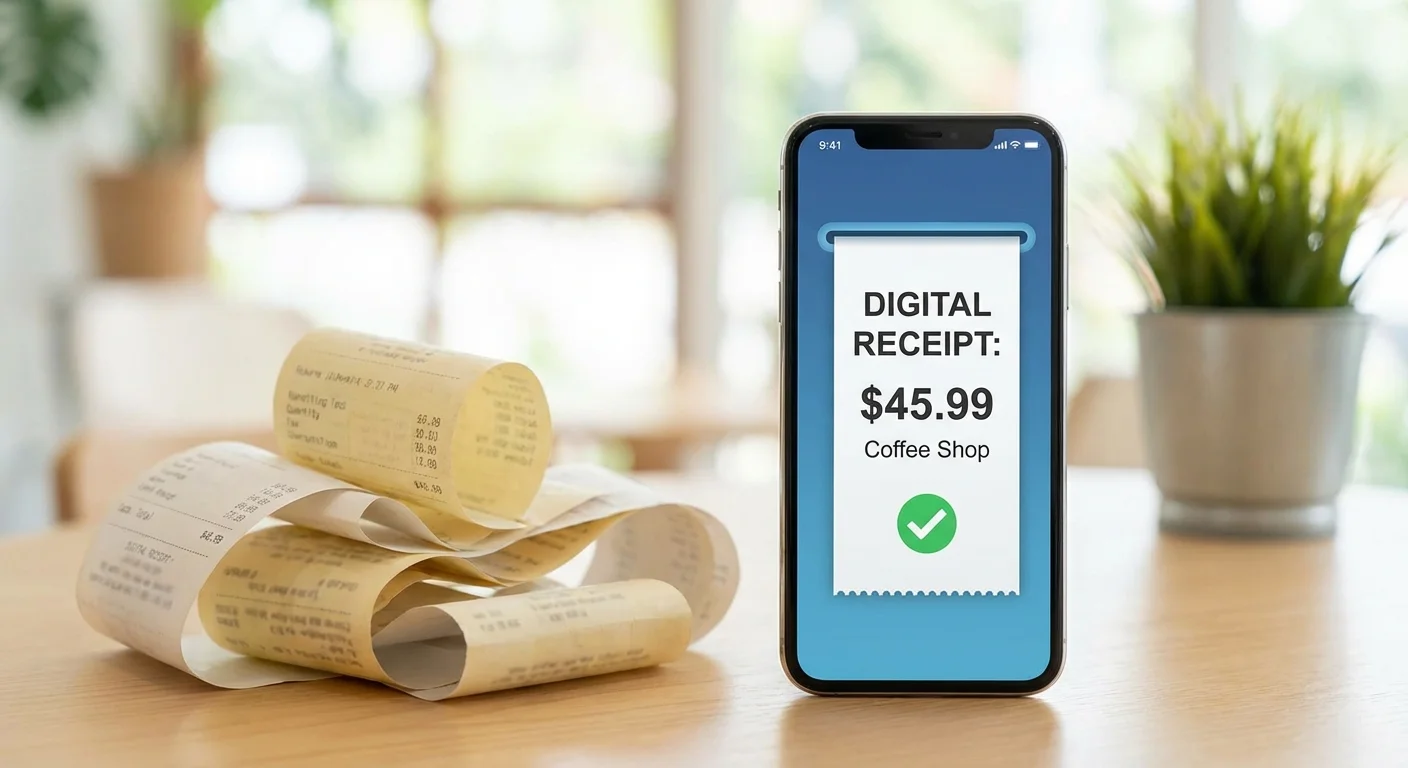
If you have ever looked at a receipt from a year ago only to find a blank, white slip of paper, you have experienced the primary flaw of thermal printing. Most modern retailers use heat-sensitive paper that fades rapidly when exposed to light, heat, or even the friction of a wallet. By the time you sit down with your accountant, the proof of your $500 office equipment purchase might have literally vanished.
Digital storage solves the durability problem, but it also solves the “searchability” problem. When you maintain a digital archive, you can find a specific transaction in seconds using keywords or dates rather than manually sorting through hundreds of slips. This efficiency is critical for small business owners, freelancers, and individuals who itemize deductions. Every lost receipt represents real money—taxable income that you could have legally shielded from the government.
Consider the data: The IRS typically has three years to audit a return, but this window extends to six years if you understate your income by more than 25%. If you cannot produce documentation for your deductions during an audit, the IRS can disallow those expenses, resulting in back taxes, interest, and penalties. A robust digital system acts as your insurance policy against these financial setbacks.
“An investment in knowledge pays the best interest.” — Benjamin Franklin
Method 1: The Cloud Storage Approach (The DIY Manual Method)
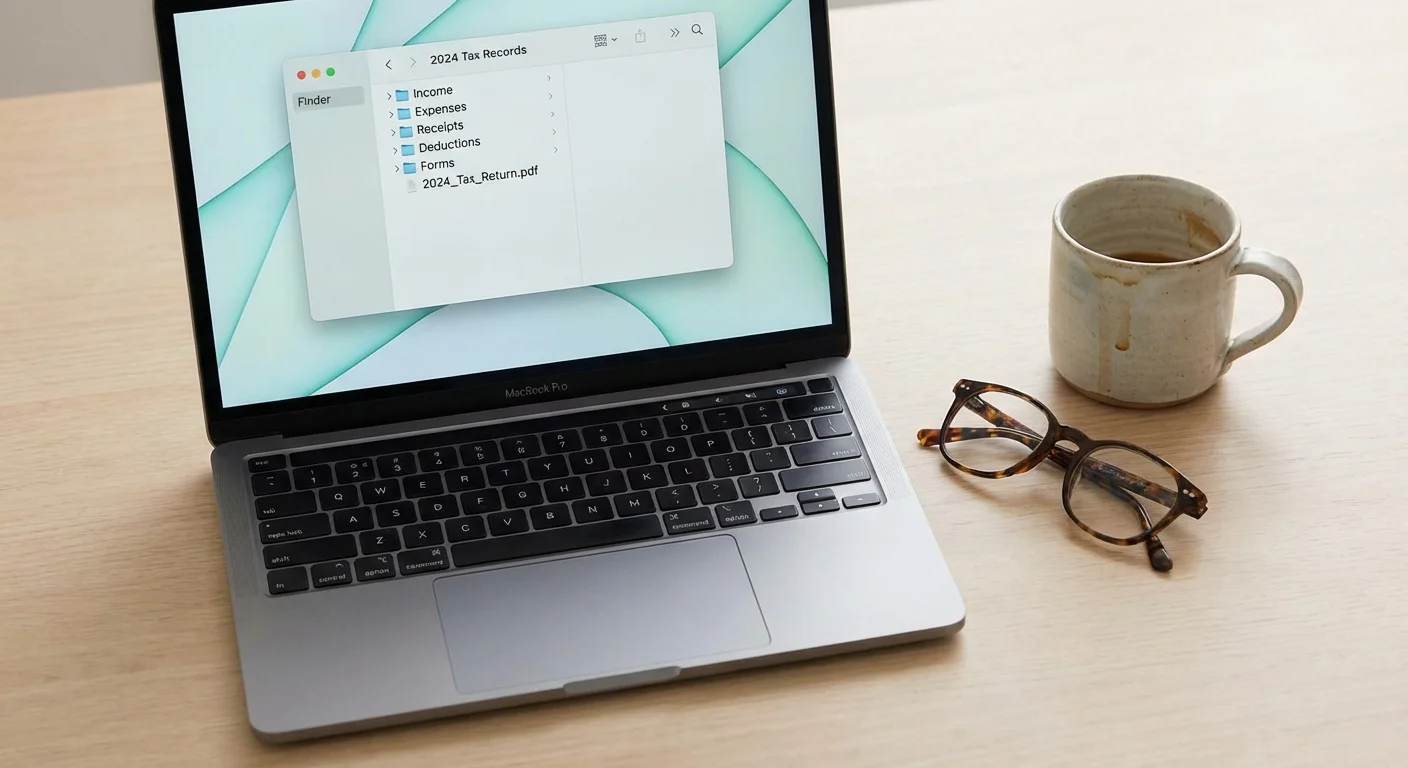
This method is the most cost-effective and straightforward for individuals with relatively simple tax situations. It utilizes tools you likely already use, such as Google Drive, Dropbox, or Microsoft OneDrive. The goal here is to create a logical folder structure that mirrors the categories on your tax forms.
To start, create a master folder for the current tax year (e.g., “2024 Tax Records”). Inside that folder, create subfolders based on your specific spending habits. Common categories include:
- Business Expenses: Office supplies, software subscriptions, and marketing.
- Medical Expenses: Copays, prescriptions, and medical equipment.
- Charitable Contributions: Donation receipts and mileage logs for volunteer work.
- Home Improvements: Receipts for capital improvements that might affect your cost basis.
- Education: Tuition payments and required course materials.
The “manual” part of this method involves taking a photo of your receipt or downloading the PDF and moving it into the correct folder immediately. The secret to success with cloud storage is a strict naming convention. Instead of leaving a file named “IMG_4502.jpg,” rename it to “2024-03-15_Staples_OfficeSupplies_45.22.jpg.” This format allows you to sort by date or vendor and see the amount at a glance without opening the file.
For more information on what counts as a valid deduction, you can explore the IRS Publication 17, which serves as a comprehensive guide for individual taxpayers.
Method 2: Dedicated Scanning Apps (The Mobile-First Method)
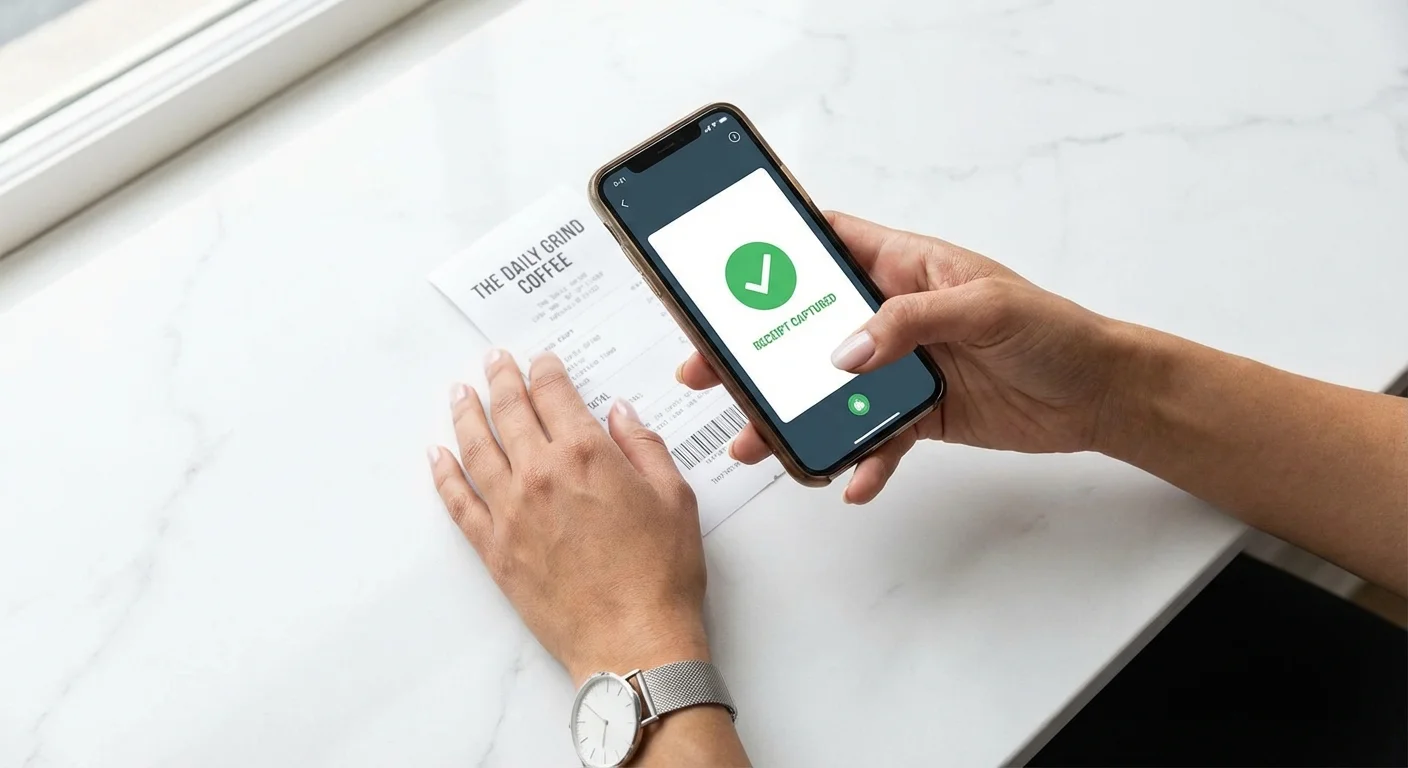
If the idea of manually renaming files feels tedious, dedicated scanning apps offer a more sophisticated solution. Apps like Adobe Scan, Microsoft Lens, and Expensify use Optical Character Recognition (OCR) technology to read the text on your receipts automatically. When you snap a photo, the app “sees” the date, the vendor name, and the total amount, often categorizing the expense for you.
One major advantage of this method is the ability to export reports. Instead of handing your CPA a folder of images, you can generate a CSV or PDF summary of all your expenses for the month or year. This significantly reduces the time your tax preparer spends on data entry, which can lower your professional fees.
| Feature | Cloud Storage (Manual) | Scanning Apps (OCR) | Accounting Software |
|---|---|---|---|
| Cost | Usually Free | Free to $10/mo | $15 – $60/mo |
| Effort Level | High (Manual Naming) | Medium (Auto-reading) | Low (Auto-syncing) |
| Best For | Occasional Itemizers | Freelancers / Travelers | Small Business Owners |
| Searchability | Filename-based | Full-text search | Category-based |
When choosing an app, prioritize those that offer “cloud sync.” This ensures that if you lose your phone, your receipts are still safely stored on the company’s servers. Many of these apps also integrate directly with cloud storage services, allowing you to have the best of both worlds: automated scanning with a permanent backup in your own Dropbox or Google Drive.
Method 3: Accounting and Expense Software (The Fully Automated Method)
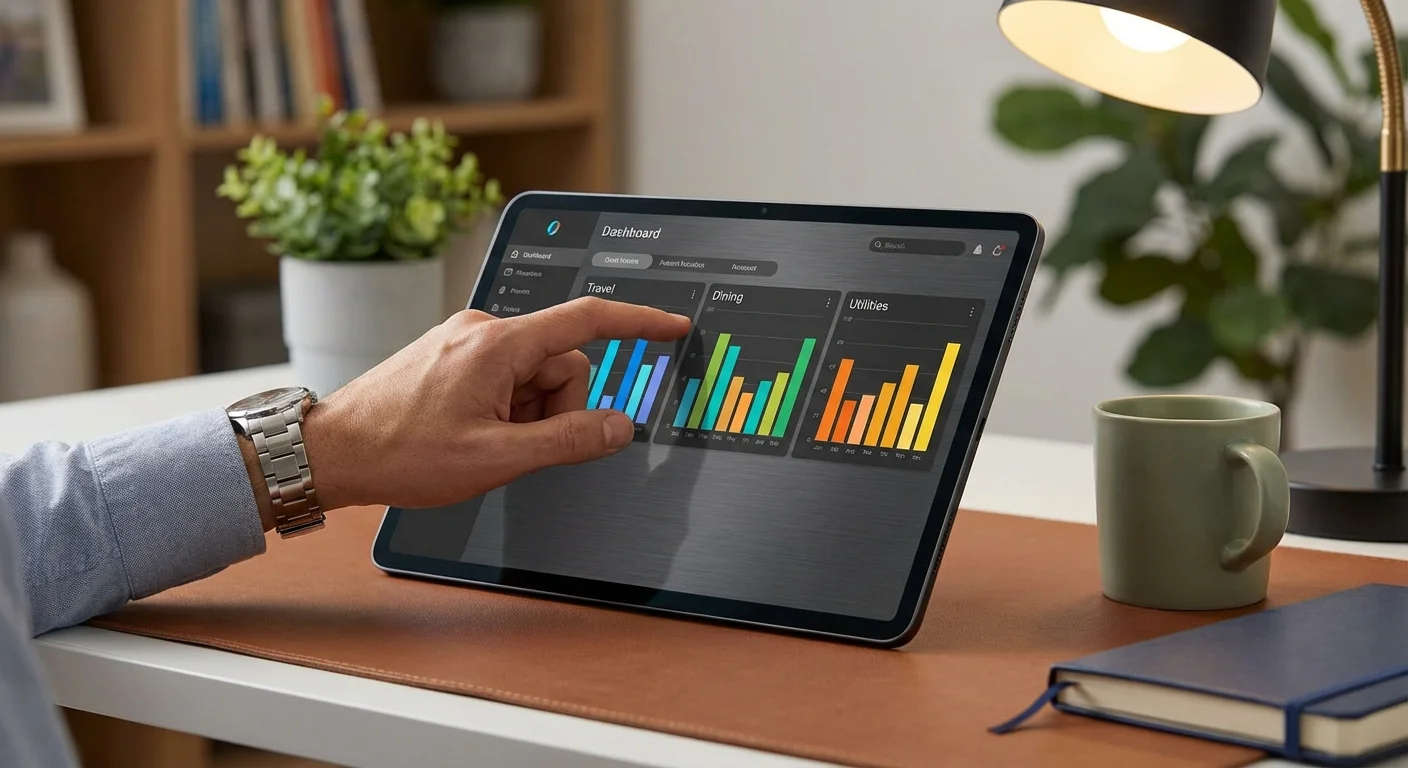
For small business owners, landlords, or those with complex side hustles, organizing tax receipts needs to be integrated with their bank accounts. Software like QuickBooks, FreshBooks, or Wave allows you to link your business credit cards and bank accounts to the platform. When a transaction occurs, the software flags it and asks you to attach a receipt.
This method provides the highest level of protection during an audit because it links the “proof of payment” (the bank transaction) with the “proof of purchase” (the receipt). If the IRS asks about a specific $1,200 charge at a computer store, you can show them the line item in your bank statement and the digital receipt attached to that specific entry in your software.
Many of these platforms provide a dedicated email address where you can forward digital receipts. When you receive an invoice from a vendor in your inbox, you simply forward it to that address, and the software uses AI to match it to the corresponding bank transaction. This level of automation ensures that no receipt falls through the cracks, maximizing your potential tax savings.
If you are unsure which software fits your needs, NerdWallet provides updated comparisons of the best accounting tools available for various business sizes.

What Information Must a Receipt Contain?
The IRS is specific about what constitutes a valid record. Simply having a credit card statement isn’t always enough because a statement shows you paid someone, but it doesn’t show what you bought. For a deduction to hold up, the digital receipt storage must show:
- The amount: The total price paid, including tax.
- The date: When the transaction occurred.
- The place: The name and location of the vendor.
- The character: What specifically was purchased (e.g., “Printer Ink” rather than just “Store Purchase”).
If a receipt is vague—for example, a restaurant receipt that only shows the total—you should write the business purpose on the receipt before you scan it. For business meals, the IRS requires you to document who was there and what business was discussed. Writing “Dinner with Client X regarding Q3 Project” directly on the slip before digitizing it ensures you meet the strict requirements of IRS Publication 463.

Security and Backup: Protecting Your Financial Identity
Receipts often contain sensitive information, including the last four digits of your credit card number, your home or business address, and your spending habits. Storing these documents digitally requires a focus on security. If you use cloud storage, enable Two-Factor Authentication (2FA) on your account. This requires a secondary code from your phone to log in, making it much harder for hackers to access your records.
Furthermore, follow the “3-2-1” backup rule:
- Keep three copies of your data (the original receipt, the digital scan, and a backup).
- Store the backups on two different media types (e.g., your computer hard drive and a cloud service).
- Keep one copy offsite (the cloud satisfies this).
While digital files don’t fade, they can be corrupted or lost if a service provider goes out of business. Periodically download your archives from the cloud and store them on an external hard drive or an encrypted USB stick. This ensures that even if you lose access to your primary account, your tax prep organization remains intact.

Avoiding Common Errors in Digital Organization
One of the most frequent mistakes is failing to scan receipts immediately. Procrastination is the enemy of tax prep. When you tell yourself you’ll scan your receipts at the end of the month, you inevitably lose small slips or forget the context of specific purchases. Aim to scan receipts within 24 hours of the transaction.
Another common error is relying solely on bank or credit card statements. While these are helpful for tracking, they lack the itemized detail required for many deductions. For instance, a trip to a big-box retailer might include both tax-deductible office supplies and non-deductible personal groceries. Only an itemized receipt can prove the distinction to an auditor.
Lastly, ensure your scans are legible before discarding the paper original. Modern smartphone cameras are excellent, but blurry photos or cut-off edges can render a receipt useless. Take a second to verify that the date, vendor, and total are crystal clear in the digital version.

When DIY Isn’t Enough
While digital tools make receipt organization easier, some situations require professional intervention. Consider hiring a bookkeeper or a Certified Public Accountant (CPA) if:
- You have high transaction volume: If your business generates hundreds of receipts per month, the manual effort of scanning may be a poor use of your time.
- You are facing an audit: If the IRS has already contacted you, a professional can help organize your digital records to meet specific audit requirements.
- You have complex international transactions: Dealing with multiple currencies and foreign tax jurisdictions adds a layer of complexity that standard apps might not handle well.
- You are unsure about deduction legality: If you don’t know whether an expense is deductible, a tax pro can provide the “judgment” that software cannot.
You can find a qualified professional through the Certified Financial Planner Board or by checking with your state’s Board of Accountancy.
Frequently Asked Questions
How long do I really need to keep digital receipts?
For most taxpayers, the IRS recommends keeping records for three years from the date you filed your original return. However, keep them for six years if you have complicated investments or business income, as the IRS has a longer window to audit for substantial under-reporting.
Do I need to keep the original paper receipt after scanning?
No, provided the digital copy is a “true and accurate” representation of the original and is easily accessible. Once you have verified the scan is clear and backed up in at least two locations, you can safely shred the paper copy.
Can I just take a picture with my phone’s camera app?
Yes, but it is not the most efficient method. A standard photo doesn’t allow for easy searching or categorization. Using a scanning app that converts the image into a PDF with OCR text makes the receipt searchable by keywords later.
What if I receive a receipt via email?
Don’t print it out just to scan it. Instead, “print to PDF” or forward the email to your dedicated tax folder or accounting software. Keeping it in its original digital format preserves the highest quality.
Take the Next Step
Transitioning to a digital receipt system is one of the most effective ways to reduce tax-season anxiety. Choose the method that fits your lifestyle: start a simple folder system in the cloud today, or download a scanning app and process the receipts currently sitting in your wallet. By spending five minutes a week on digital receipt storage, you eliminate the 15-hour marathon of tax prep organization next April.
Organizing your finances is an act of self-care for your future self. When you have a clear, documented history of your spending, you gain more than just tax savings—you gain peace of mind and a deeper understanding of where your money is going. Start your digital archive today and never go hunting through a shoebox again.
This is educational content based on general financial principles. Individual results vary based on your situation. Always verify current tax laws and regulations with official sources like the IRS or CFPB.
Last updated: February 2026. Financial regulations and rates change frequently—verify current details with official sources.








Leave a Reply